Receive and Respond to Webhooks

Difficulty
3/10
Tags
EssentialsWebhookRespond to WebhookHTTP RequestWebhooksAPI

Before we get into this, a quick clarification. A URL is just an address. Like a street address. It points somewhere on the internet. A webhook is the act of sending a message to that address. Every webhook uses a URL, but not every URL is a webhook. Google.com is a URL that serves you a website. An n8n webhook URL is a URL that's set up to receive data and trigger a workflow when that data arrives.
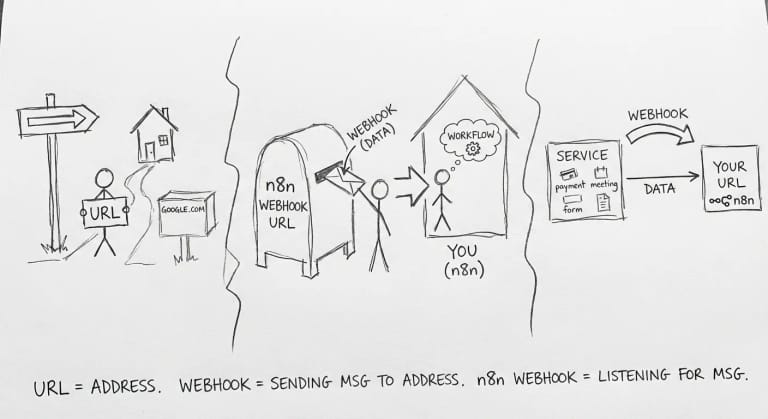
Think of it like a mailbox. The URL is the address on the mailbox. The webhook is the letter someone drops in. The n8n Webhook node is you sitting inside the house waiting for mail so you can do something with it.

So when people say "this service supports webhooks," they mean: you can give the service a URL, and when something happens (a payment comes in, a meeting ends, a form gets submitted), the service automatically sends data to your URL.

You've already used something like this. The Form Trigger from the first lesson? That's basically a pre-configured webhook. n8n's trigger nodes (Gmail Trigger, Schedule Trigger, etc.) are all built on webhooks under the hood, just wrapped in a nice UI. The Webhook node is the raw, DIY version. You use it when a service doesn't have a dedicated n8n trigger, or when you want to build something custom.

I used this a lot when I was doing automation work. I had a table in Airtable full of PDFs that needed to be analyzed by AI. Airtable's own automation system wasn't cutting it. So I built an n8n webhook and added a button in Airtable that, when pressed, sent the PDF data to n8n. n8n ran the AI analysis and inserted the results back into Airtable. I used a webhook instead of the Airtable trigger because I only wanted to process specific PDFs, not every new row. The button gave me that control.

Another time, a meeting transcription service sent me the transcript and meeting ID via webhook every time a call ended. I didn't have to poll for it or check manually. The service just pushed the data to my n8n URL, and my workflow took it from there.

Whenever you run into a problem with some software now, you check: does this service support webhooks? If yes, you can probably build a solution in n8n. That mental model is how I ended up connecting Airtable, meeting tools, payment processors, and a dozen other services to n8n.

But webhooks aren't just for receiving data. The Respond to Webhook node lets you send data back. That means you can build simple APIs: receive a request, process it, return a result. You can even return HTML and build extremely simple web apps.

Watch the video below. It walks through everything: the Webhook node, test vs production URLs, query parameters, authentication, and the Respond to Webhook node with multiple response types. After the video, the challenge has you build your own version: a bookmarkable weather dashboard that returns an HTML page.

What you'll practice:

  • Setting up a Webhook node to receive GET requests
  • Fetching external data with HTTP Request
  • Using the Respond to Webhook node to return an HTML page
  • Testing your webhook by pasting the URL in your browser

Your Task

  1. 1Copy the exercise below
  2. 2Paste into your n8n editor (Ctrl+V)
  3. 3Solve it — use hints if you get stuck
  4. 4Check the solution when done

Build a bookmarkable weather dashboard. When you open a URL in your browser, n8n fetches the current weather and returns a simple HTML page showing the temperature and wind speed.

  1. Add a Webhook node configured for GET requests
  2. Connect an HTTP Request node that fetches weather data from Open-Meteo (free, no API key): https://api.open-meteo.com/v1/forecast?latitude=52.52&longitude=13.41&current=temperature_2m,wind_speed_10m&timezone=auto
  3. Add a Respond to Webhook node set to respond with Text
  4. In the Respond to Webhook node, return a simple HTML page that displays the current temperature and wind speed from the API response

To customize for your city, replace the latitude and longitude. Search "your city coordinates" to find them.

After testing with the test URL in your browser, try bookmarking it. You now have a personal weather page.

Bonus: Add Header Auth to your Webhook node so only you can access it.

Get the exercise workflow

Create a free account to copy exercises into your n8n editor.

Hints

  1. Search for "Webhook" in the nodes panel (not "Webhook Trigger", just "Webhook")
  2. Set the HTTP Method to GET and leave the path as the default
  3. In the Webhook node, set Respond to "Using 'Respond to Webhook' Node"
  4. Connect an HTTP Request node. Paste the Open-Meteo URL. This API uses current instead of hourly to get right-now data
  5. Connect a Respond to Webhook node. Set Respond With to "Text"
  6. In the Response Body, switch to Expression mode and write HTML that includes the temperature and wind speed. Access them with expressions like {{ $json.current.temperature_2m }} and {{ $json.current.wind_speed_10m }}
  7. A minimal HTML page works fine:
    <h1>Weather Right Now</h1>
    <p>Temperature: [expression here] C</p>
    <p>Wind: [expression here] km/h</p>
    
  8. Click "Listen for Test Event", then open the test URL in a new browser tab
  9. For the bonus: change Authentication to Header Auth, create a credential with a header name (like X-API-Key) and a secret value. Then add that header when accessing the URL

Common gotcha: Make sure the Webhook node's Respond setting is "Using 'Respond to Webhook' Node", not "Immediately". If you leave it on Immediately, the browser gets a generic "Workflow was started" message instead of your HTML.

Explanation

Webhook vs Respond to Webhook

The Webhook node creates a URL that listens for incoming requests. On its own, it can only confirm "workflow was started." The Respond to Webhook node is what lets you send actual data back. Together, they turn n8n into a simple API server: receive a request, process it, return a result.

Test URL vs Production URL

The Webhook node gives you two URLs. The test URL (contains webhook-test in the path) works while you're building and testing in the editor. The production URL (just webhook) only works after you save, publish, and activate the workflow.

This is a common gotcha, especially in newer versions of n8n where you have to both save and publish before the production URL becomes active. If your webhook isn't responding, check three things: is the workflow saved, is it published, and is it active (toggled on in the top-right)?

One nice thing: if you send a request with the wrong HTTP method (like POST when the webhook expects GET), n8n doesn't just silently fail. It tells you which method the webhook is expecting. Same if you hit a saved-but-not-published webhook: n8n tells you to publish first.

When to Use Webhooks

Use webhooks when you want external services or tools to trigger your n8n workflows. Many products support webhooks: payment processors (Stripe, PayPal), CRMs (HubSpot, Salesforce), project management tools (Linear, Asana), meeting software (Fireflies, Recall.ai), form builders (Typeform, Tally), e-commerce platforms (Shopify, WooCommerce). Anywhere you see a "webhook URL" field in the settings, you can point it at your n8n webhook.

If n8n already has a dedicated trigger node for the service (like Gmail Trigger or Slack Trigger), use that instead. It's the same concept, just pre-configured. Webhooks are for everything else.

Authentication

Your webhook URL is public. Anyone who knows it can send requests to it. For testing, that's fine. For production, especially if your workflow calls paid APIs (like OpenAI), add authentication so nobody can spam your endpoint and run up your bill. Header Auth is the simplest: you define a secret header value, and only requests with that header get through. Basic Auth works too (username and password). The video covers both.

Returning HTML

The Respond to Webhook node can return JSON, plain text, or (the fun one) HTML. When you return HTML and someone opens your webhook URL in a browser, they see a web page. That's what you built in this exercise: a mini web app, served entirely by n8n. You could extend this to build dashboards, status pages, or simple tools for your team.

Where to Go From Here

The weather dashboard is a starting point. The same pattern (Webhook, process, Respond to Webhook) works for anything. An Airtable button that triggers AI processing. A Slack slash command that looks up data. A custom API endpoint for your website.

Copy the Solution

Paste into n8n with Ctrl+V to compare with your approach.

How was this lesson?

Get the solution workflow

Create a free account to copy solutions into your n8n editor.

Related Content

Continue your learning journey with these related lessons and guides: