Add OpenAI API Key to n8n (5-Min Setup)
This guide shows you exactly how to add an OpenAI API key to your n8n node. By the end, you'll have a working connection between n8n and OpenAI's GPT models, ready to build AI-powered workflows.
What You'll Need
- An n8n instance (cloud or self-hosted)
- An OpenAI account (free to create)
Note: At the time of writing, new OpenAI accounts receive some free API credits to get started. If this has changed, you may need to add a payment method before your API key will work.
Step 1: Get Your OpenAI API Key
If you don't have an OpenAI account yet, head to platform.openai.com and click Sign Up.

You can sign up with your email or use Google, Apple, or Microsoft for faster registration. After signing up, OpenAI will prompt you to create your first API key right away:
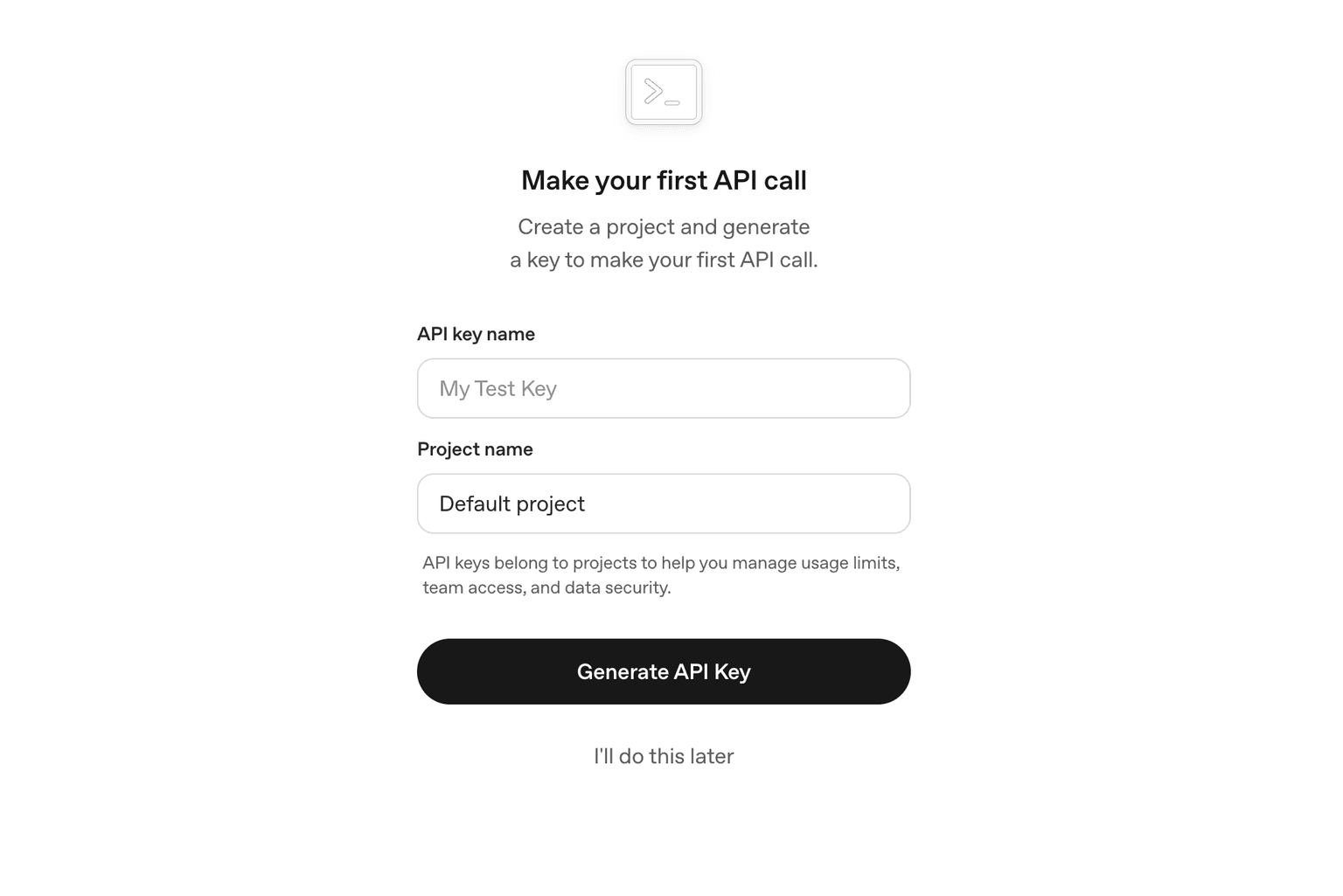
Give your key a descriptive name like "n8n" and keep the default project selected. Click Generate API Key.
If you already have an OpenAI account, go directly to your API Keys page and click Create new secret key. Name it something descriptive like "n8n".
Once your key is generated, copy it immediately:

Important: Store your API key somewhere safe. OpenAI only shows it once—you won't be able to see it again.
Step 2: Add the OpenAI Node in n8n
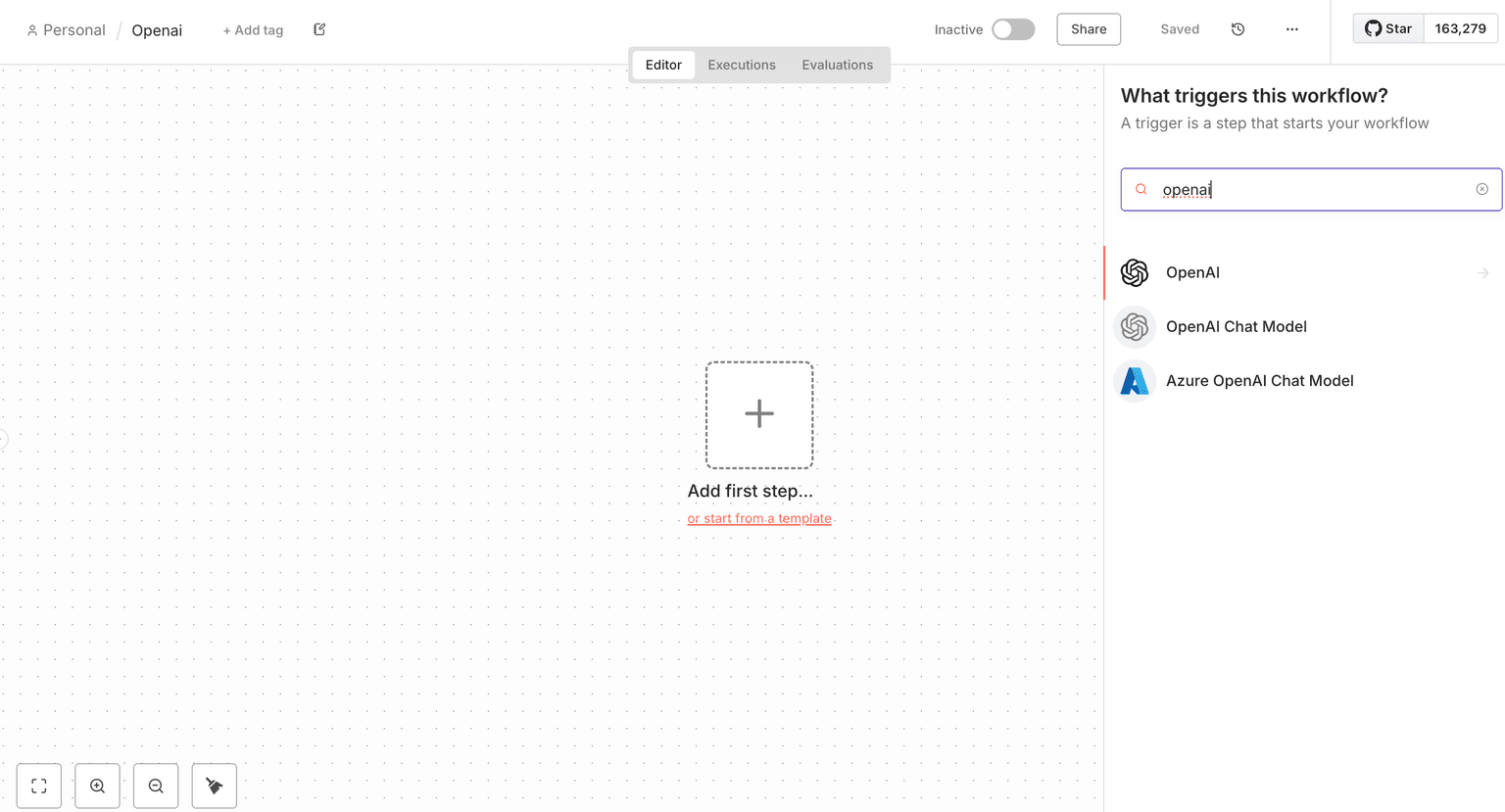
Open your n8n workflow editor. Press Tab on your keyboard or click the + button to add a new node.
Type "openai" in the search box. You'll see several options—select the OpenAI node. Alternatively, the AI Agent node also works if you connect an OpenAI Chat Model to it.
Step 3: Configure Your OpenAI Credentials
With the OpenAI node selected, you'll need to connect your account. Click on the Credential dropdown and select Create New Credential.
In the credential modal:
- Paste your API key into the API Key field
- Leave the Organization ID field empty (it's optional and only needed if you belong to multiple organizations)
- Keep the default Base URL

You should see "Connection tested successfully" confirming your API key works. Click Save to store your credentials.
Step 4: Test Your OpenAI Connection
Now let's verify everything works by sending a test message to OpenAI.
Configure your OpenAI node with these settings:
- Resource: Text
- Operation: Message a Model
- Model: GPT-5-NANO (a lightweight model, great for testing)
- Messages: Add a simple prompt like "Hello!"
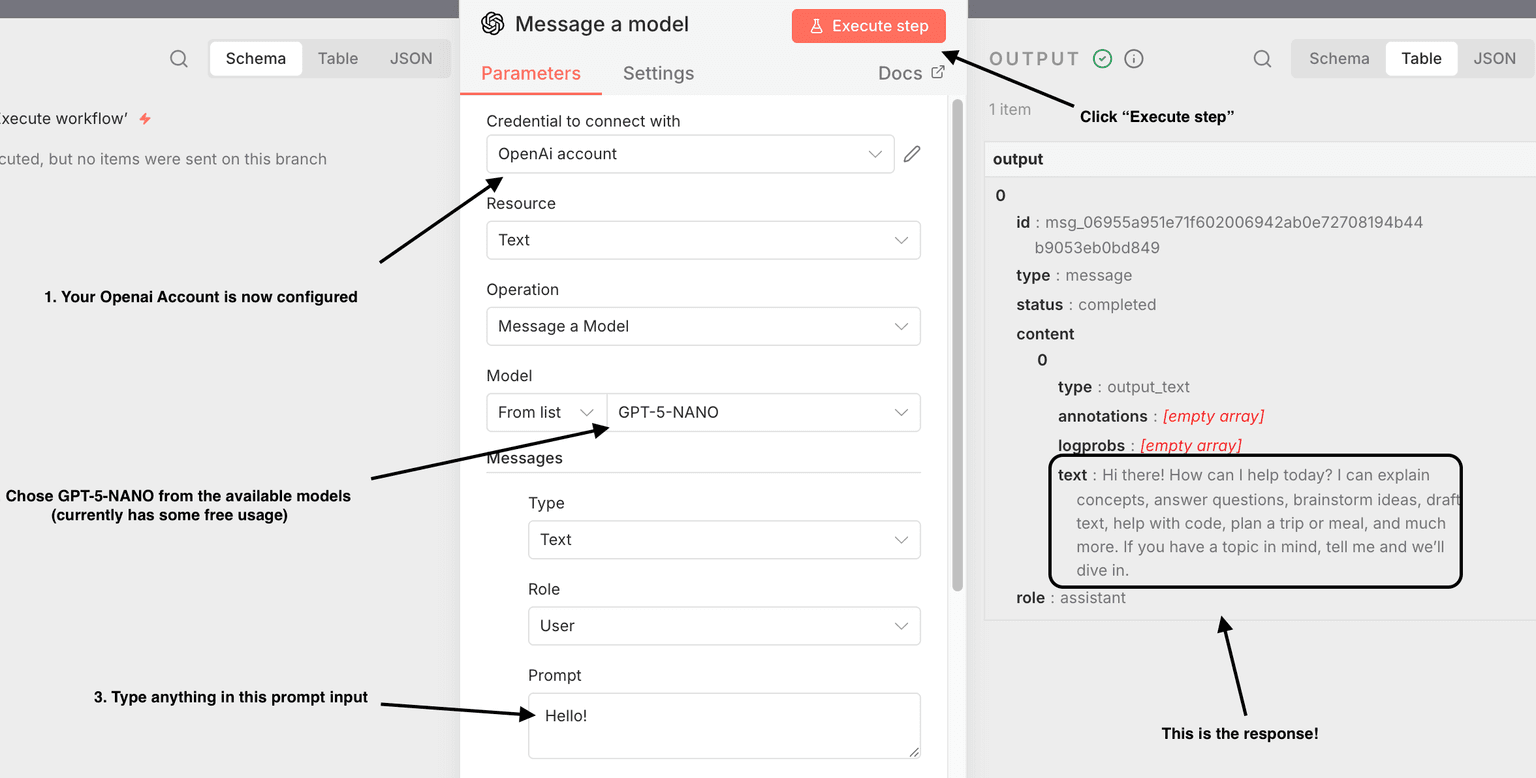
Click Execute step to test the connection. You should see a response from OpenAI in the output panel.
You're Ready to Build
Your OpenAI integration is now configured. You can use this connection to:
- Build AI chatbots
- Generate content automatically
- Analyze and summarize text
- Create intelligent automation workflows
- Connect to any API to feed data into your AI workflows
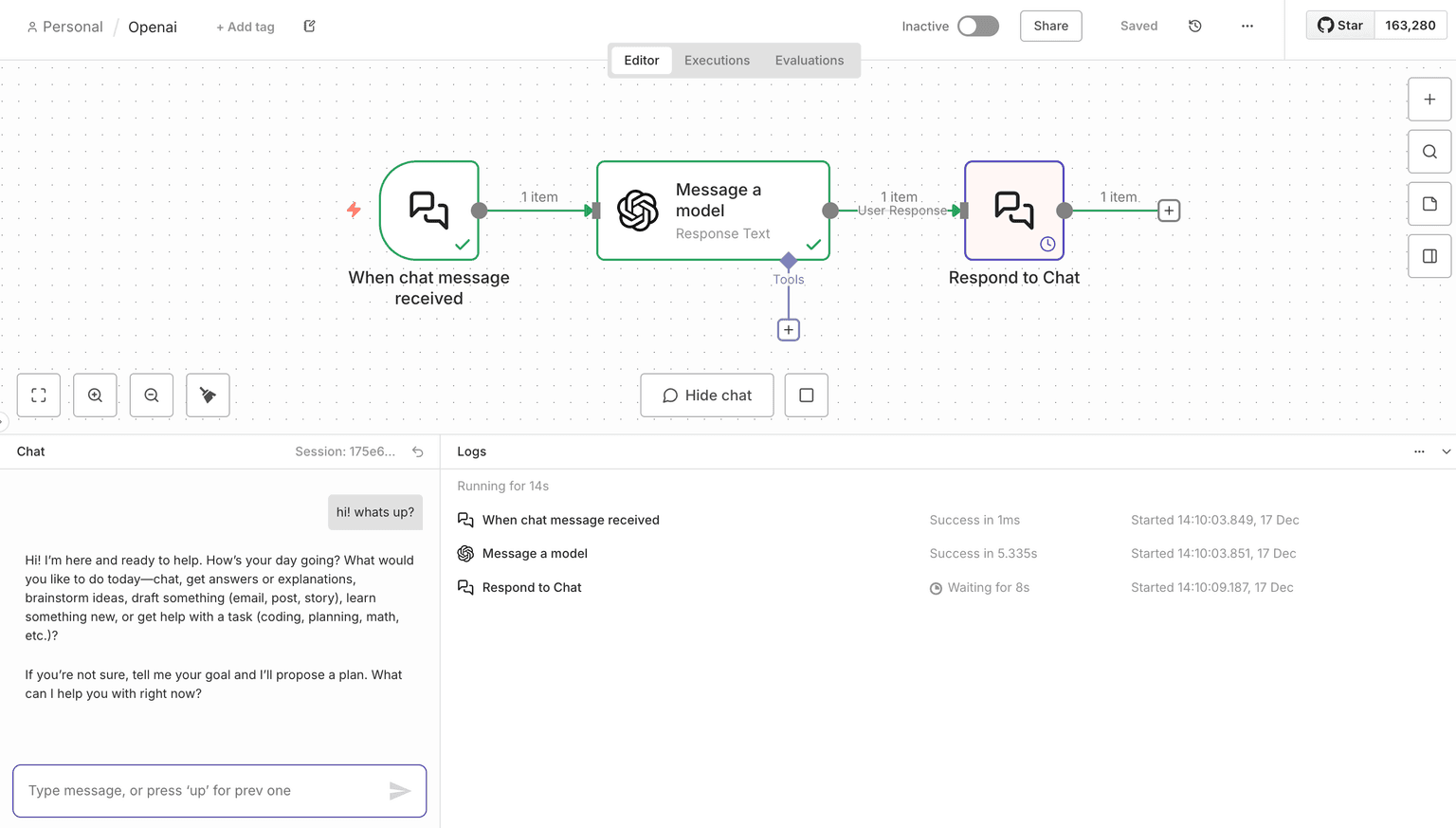
Tip: As of December 2025, new OpenAI accounts include a limited number of free API calls for GPT-5-NANO, making it a great choice for experimenting while you learn.
Related guides
Keep reading. These cover adjacent topics: